

How to use RGE Studio with Salesforce, Pardot, and Marketing Cloud
Two Salesforce practitioners walked through their real RGE Studio workflows for Pardot and Marketing Cloud. Here is the cost argument nobody plans for, and why the native editor is not always where the best work happens.

You get into Salesforce. You open the email builder. You wince a little. You close it. You open RGE Studio.
That, more or less, was the story that came up twice in the same webinar, from two practitioners working in two different corners of the Salesforce ecosystem. Which means it might be your story too.
In episode six of the Email Support Group, Logan Sandrock Baird and Emily Santos sat down with Kyle Snay, CRM Administrator at Minnesota State University, Mankato, and Tana Babcock Walsh, a Salesforce consultant at Perficient with roots in the ExactTarget era. The topic: how RGE Studio and Salesforce actually work together, where the native editor falls short, and what a real workflow looks like once you stop fighting the tools and start using the right ones for the right jobs.
Here’s everything they covered.
How do RGE Studio and Salesforce work together?
RGE Studio is the design layer. Salesforce is the CRM, personalization, and sending layer. You design emails in RGE Studio, review and approve them there, and then move the final HTML into Salesforce when you are ready to send. The two tools do not compete. They divide the work.
RGE Studio works with both Salesforce Account Engagement (formerly Pardot) and Salesforce Marketing Cloud Engagement. A quick note on naming before we go further: Pardot is the old name for what Salesforce now calls Marketing Cloud Account Engagement. Marketing Cloud refers to Marketing Cloud Engagement, a separate product from the ExactTarget world built for more complex, high-volume programs. They handle templates, merge tags, and personalization differently, which is why the workflows below are split by product. If you have ever tried to explain the difference at a dinner party, you have our sympathy.
Where Salesforce excels, and where it needs a little help
Salesforce is powerful because it manages data, audiences, automations, personalization, and large-scale sending. That is what it was built for.
The email editor, though, has always been a different story. Tana explained that even back in the ExactTarget days, her workflow involved designing an email pixel-perfect in Photoshop, coding it by hand, and importing it into the platform. The editor has often lagged behind the rest of the platform's power, especially for teams trying to create polished, on-brand emails without hand-coding.
Kyle had a nearly identical experience on the Pardot side, and the realization came almost by accident.
His team at Minnesota State Mankato was already using RGE Studio before they ever moved to Salesforce. Before that, they were on Oracle Service Cloud, and they had discovered that RGE Studio designs pasted cleanly into Oracle's HTML editor. Suddenly, they had polished emails in a system that was never meant to be their favorite design tool. When they later migrated to Salesforce Account Engagement, the assumption was that they would leave RGE Studio behind.
Then they opened the Pardot editor during implementation. "We're not leaving RGE Studio. We just can't do everything in Salesforce that we can do in RGE Studio."
The Pardot and Account Engagement workflow
Kyle's setup at Minnesota State Mankato started as an accident and has since become a system that now supports 44 departments and sends 5.4 million emails in a single academic year.
The workflow is intentionally simple. RGE Studio is where emails get designed. Salesforce Account Engagement is where they get sent. Most of the people creating emails never need to touch Salesforce at all. Which, honestly, sounds calming.
How it works
The process Kyle described is almost aggressively simple, which is the point.
- A department user, whether a student worker, office administrator, or communications director, builds the email in RGE Studio and lets Kyle know when it is ready.
- Kyle runs Smart Check, the built-in email quality and accessibility checker, which flags issues such as missing alt text, broken links, and oversized images.
- He copies the HTML, pastes it into the existing email record in Account Engagement, adjusts the subject line, sends a test, and schedules the send.
About 15 minutes, start to finish, when things are running smoothly. The people who design the email never see the Salesforce side. They don’t need to, and Kyle says that is largely the point. "They don't need to, and they don't really care, probably. But it makes our lives easier, and it makes their lives easier."
RGE Studio does have a native connector for Account Engagement, and Kyle was one of the people who pushed for it. When it launched, he tested it and found that for his specific workflow, the old copy-paste method was actually faster. The connector works well, but it requires filling out additional fields, such as campaign details. For a team with a streamlined process, fewer steps win. Use the connector when it fits your process. Use HTML copy-paste when that is faster. Both are valid. Either works!

The cost argument nobody plans for
Here is the part that surprised even Kyle when his team figured it out: Salesforce licenses are expensive. RGE Studio user seats aren’t.
If someone only needs to design emails, not manage sends, not touch CRM data, not configure automations, they don’t need Salesforce access at all. Kyle kept Salesforce access to a very small group who handle the actual sending. Everyone else works in RGE Studio.
"We don't have a lot of money in public higher ed," he said. "And that was a paradigm shift for us." The workspace and user structure in RGE Studio enabled them to scale from two users to 32 across 44 departments without a proportional increase in cost.
Brand consistency and Smart Check
Something else Kyle did not plan for: workspace-level style settings in RGE Studio became the university's brand enforcement layer. Every user sees the official color palette when they pick a color. Fonts are restricted to ones that render consistently across email clients. Nobody accidentally uses the wrong purple.
"We can't do that on the Salesforce side," Kyle noted. The guardrails live in RGE Studio and travel with every email, so no one has to think about them.
The same workspace structure is where Smart Check became something more than a quality check. When an email fails, Kyle does not just fix it for the user. He tells them what needs attention, so they learn to check it themselves next time. Over time, users started running Smart Check before even notifying Kyle that the email was ready. He also created a Microsoft Teams channel for RGE Studio users, which they call the B team, where he shares guidance, reminders, and resources. The tool became part of the culture, not just a step in someone else's process.
.png)
The Marketing Cloud Engagement workflow
Tana's workflow focused on Salesforce Marketing Cloud Engagement, which is more complex in several ways. It involves personalization strings, unsubscribe and preference center links, physical mailing address requirements, templates with editable areas, AMPscript, and dynamic content. RGE Studio can simplify the design layer before the email moves into Marketing Cloud.
If Kyle's workflow is about keeping Salesforce access contained, Tana's is about keeping Marketing Cloud complexity from leaking into the design process too early.
Save merge tags and special links once
The most practical thing Tana showed was how to store Salesforce Marketing Cloud personalization strings inside RGE Studio, so your team never has to look them up again. In settings, you can save reusable merge tags and special links for the web version, unsubscribe, preference center, physical mailing address, and any other personalization strings your program requires. Once saved, non-technical users insert them from a dropdown. They never touch the underlying syntax.
This matters because Marketing Cloud syntax is easy to break. A mistyped personalization string can cause rendering issues or broken links. By saving the correct format once, teams reduce errors and make the workflow accessible to non-technical users. The same principle applies to Account Engagement, though the syntax is different.
The basic connector workflow
In RGE Studio, add your personalization strings and required links, export via the Marketing Cloud connector, select your folder, and create the email in Marketing Cloud. The email arrives as an HTML paste email with all merge tags intact, ready for Marketing Cloud to resolve at send time.
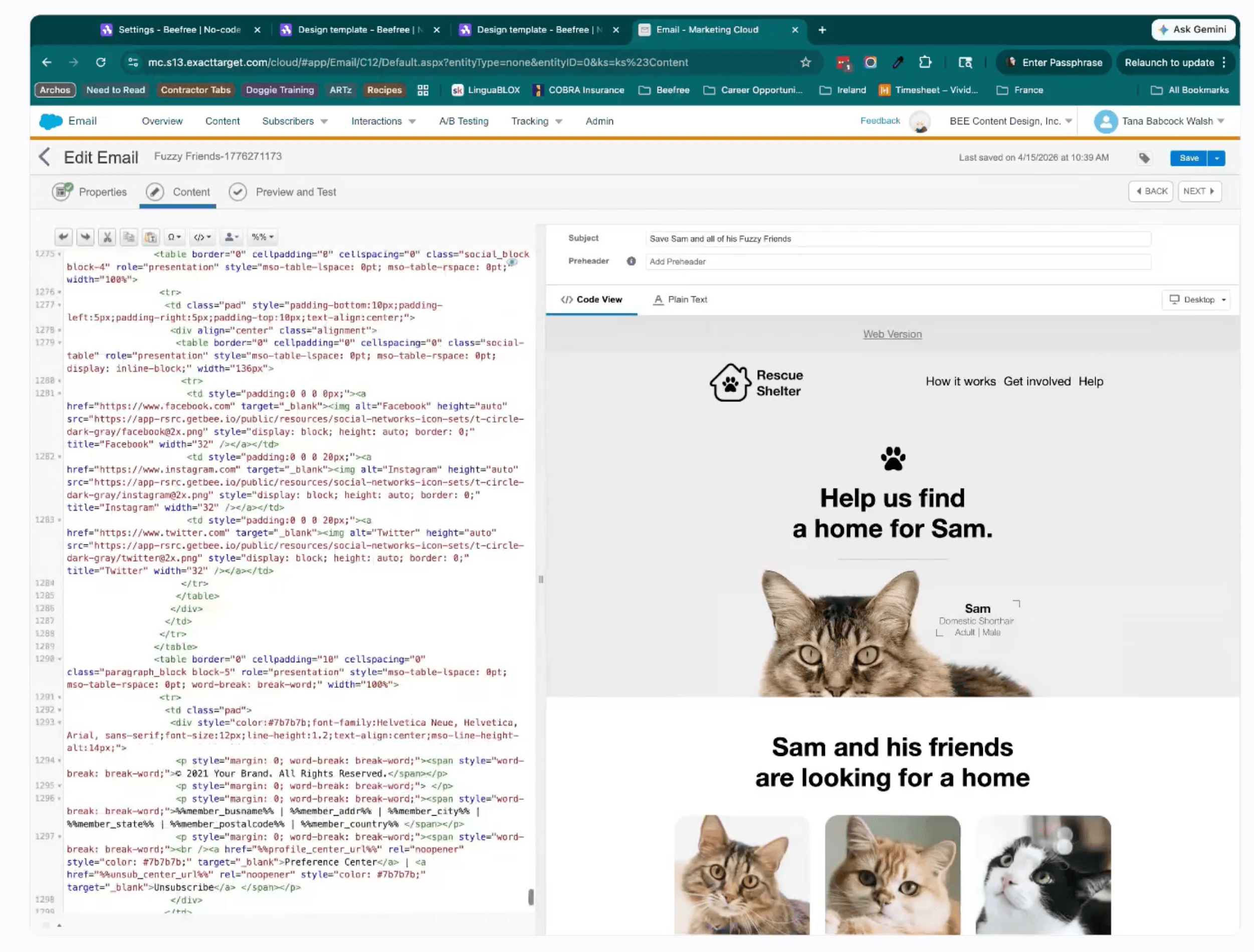
One distinction worth understanding: the connector delivers the email as an HTML paste, not as a Marketing Cloud template with editable content areas. For most use cases, this is exactly what you need. If your team works with editable templates, there is a more involved technique.
When it comes to merge tags and AMPscript, the simple rule is this: RGE Studio preserves the syntax; Salesforce resolves the data. For Account Engagement, copy the merge tag syntax from Salesforce, save it in RGE Studio, and it will be available from a dropdown every time. For Marketing Cloud, the same principle, different syntax. If your email needs to dynamically reference multiple Marketing Cloud data extensions, that is an AMPscript use case. RGE Studio can carry AMPscript in the HTML, but Marketing Cloud executes it. RGE Studio handles the design layer. Marketing Cloud handles the personalization logic.
Creating editable templates with saved rows
If your team uses Marketing Cloud templates with certain sections locked and others editable, Tana showed how to build those structures using RGE Studio saved rows.
Design your header and footer as saved rows. For the editable content areas in between, create a saved row that contains a specific chunk of HTML, a data slot tag that Marketing Cloud recognizes as an editable area. When you need multiple editable areas, duplicate the row and give each one a unique data key name.
When you export this email, skip the connector. Copy the HTML and paste it into Marketing Cloud as a template rather than a paste email. Marketing Cloud then treats the tagged sections as editable blocks. Your header and footer stay part of the template structure. Your content areas remain editable in Marketing Cloud.
The team planned to include the row code in the session resources, so teams would not need to build it from scratch. Here it is, along with a few things to keep in mind before you use it.
- To be used in an HTML block within an RGE Studio design
- Can be stored as a saved row, but you must remember to update the data key data-key=UPDATE each time it is added to your email
- Must export the HTML and copy into Marketing Cloud Engagement as a Paste HTML Template
- It is a best practice to design all of your content areas and blocks within RGE Studio so that the CSS is correct and does not cause rendering issues
- Highly recommend testing once in SFMC
<table align="left" border="0" cellpadding="0" cellspacing="0" width="100%">
<tbody>
<tr>
<td align="left" valign="top">
<table cellspacing="0" cellpadding="0" style="width:100%">
<tbody>
<tr>
<td class="responsive-td" valign="top" style="width: 100%;">
<div data-type="slot" data-key="main">
</div>
</td>
</tr>
</tbody>
</table>
</td>
</tr>
</tbody>
</table>
Use RGE Studio for approvals before you touch Marketing Cloud
This was one of Tana's strongest recommendations, and it is worth sitting with for a moment.
In Marketing Cloud, getting a visual sign-off on a complex email can be cumbersome. AMPscript-driven personalization may be hard to preview fully unless your test data and scenarios are already set up in Marketing Cloud. Dynamic content depends on test data being configured in Salesforce. You often cannot show stakeholders every possible version of an email without significant setup on the Salesforce side.
In RGE Studio, you can preview the email, check mobile and desktop views, run Smart Check, share a link, collect comments, and iterate before the email even enters Salesforce. No Salesforce user licenses required for reviewers. No version confusion. And if something needs to change after you have already pushed to Marketing Cloud, you update it in RGE Studio and overwrite the existing version rather than creating a new file. No more folders full of emails named final_final_v3_real_FINAL. Your content library deserves peace, too.
A little recap for you
If your brain is already doing Salesforce gymnastics, here’s the short version.
- Test which method is quicker for you in Account Engagement—the connector or simple copy and paste.
- If you don’t need to edit an email in Marketing Cloud: design in RGE Studio, export via the Marketing Cloud connector.
- If you need editable Marketing Cloud templates, use the saved row approach.
- Stakeholders or reviewers who need to sign off? Keep the whole approval process in RGE Studio before anything touches Salesforce.
- Non-technical users who only need to write copy or design? Give them RGE Studio access, keep Salesforce for the people who actually send.
- If you need strict brand governance, then workspaces, style kits, saved rows, and locked elements do the work.
- And if you want to use advanced personalization across multiple data extensions, then use RGE Studio for layout, AMPscript, and Marketing Cloud for logic.
The real answer to "we already have an email editor in Salesforce."
Both Kyle and Tana got this question at the end of the session. Kyle's answer was practical. Look at cost, access, and workflow. Look at the features that simply do not exist in Account Engagement:
- mobile-specific design controls and the ability to adjust padding and layout independently on mobile versus desktop
- Smart Check and workspace-level brand controls
- proofing that takes fifteen seconds instead of fifteen to twenty minutes
Tana's answer went in a different direction, but one worth exploring.
"The resources that RGE Studio offers are unparalleled. We don't receive emails or events from Salesforce that talk about best practices and how to design emails better, or what to look out for. That doesn't exist."
The newsletter, the webinars, the community, and sessions like this one. "I go through the newsletter, and there is always an article or two that I can open up and say, this is great, this relates to us. And then I put it into our Microsoft Teams channel for our users."
The point is not just the tool, it’s the ongoing help around it. People sharing what works, asking better questions, and showing up every month to figure out the messy parts together.
The frame for the whole conversation is this: Salesforce is the system of record and sending engine. RGE Studio is the collaborative creation layer. They do different jobs, but together they make the workflow easier, both logistically and, probably, emotionally.
FAQ
Does RGE Studio integrate with Salesforce? Yes. The short version: you design in RGE Studio, you send from Salesforce. There are connectors for both Account Engagement and Marketing Cloud Engagement, and if your team has already built a rhythm around copy-paste HTML, that works too. Kyle would probably tell you to use whichever one involves fewer steps for you. If you need editable templates in Salesforce Marketing Cloud, there is a more involved workflow using saved rows that Tana walked through in the session.
Can RGE Studio handle Salesforce merge tags? Yes. Save the exact Salesforce syntax once inside RGE Studio, then let your team insert it from a dropdown. Fewer typos, fewer broken personalization strings, fewer 11 pm troubleshooting sessions.
Can RGE Studio use AMPscript? RGE Studio can carry AMPscript in the email HTML, but Marketing Cloud executes the logic.
Can RGE Studio create Marketing Cloud templates with editable content areas? Yes, with a bit of setup using saved rows and a Salesforce markup string to indicate the editable areas. Copy the HTML into Marketing Cloud as a template rather than a paste email, and Marketing Cloud recognizes those rows as editable blocks. Tana walked through exactly how in the session.
Should I use the connector or copy-paste HTML? Whichever is faster for your team. The connector adds structure and reduces manual transfer steps, which is genuinely useful. Copy-paste is faster for teams that already have a clean process.
Is RGE Studio a replacement for Salesforce? No. Salesforce still does everything Salesforce does: CRM, data, personalization, automation, and sending at scale. RGE Studio is the creation layer that sits upstream.
The short version
If your team uses Salesforce but the native email editor is limiting you, here is what Kyle and Tana confirmed:
- RGE Studio sits cleanly on top of both Account Engagement and Marketing Cloud. You design there, you send from Salesforce.
- The cost case for keeping non-senders out of Salesforce is real, and it compounds as your team grows.
- Smart Check, workspace-level brand styles, and mobile design controls do work that Salesforce does not replicate.
- For Marketing Cloud templates with editable content areas, the saved row technique is worth learning once and using indefinitely.
- For many teams, approvals are easier in RGE Studio. Salesforce is where the final send comes together.
- The connector exists and works. Whether to use it or copy-paste HTML depends on your workflow. Both are valid.
If you want to see any of this in practice, the full recording of this session is available, including Tana's live demo of the Marketing Cloud connector and the editable template technique.
Articles to wet your whistle




.png)
Subscribe to our newsletter.
Dive into the world of unmatched copywriting mastery, handpicked articles, and insider tips & tricks that elevate your writing game. Subscribe now for your weekly dose of inspiration and expertise.