RGE Studio

Prompt library

Prompts that work with RGE Studio connected to your AI assistant, via MCP. Copy one, fill in the blanks, paste it into the chat.

Add a section in a specific place
add {what} {where} in the email we're working on
Copy
Why this works
Say where it goes and it goes there. Otherwise you spend the next message moving it.

build
Build
{"what": "a three-across row of product cards with image, name and price", "where": "after the hero"}
add-a-section
Add a tag without losing the ones already there
add the tag {tag} to {email} — read back the tags it already has first so none of them get dropped
At least one email already saved in a folder.
add the tag {tag} to {email} — read back the tags it already has first so none of them get dropped
Copy
Why this works
Tags get written as a whole list, so it has to read them before it adds one. Names, subject lines and preview text are not like that, they change on their own.
Doing a whole folder? Ask to see every tag that is already there first, then write once.
operate
Organize
{"tag": "Q3-launch", "email": "the member update"}
add-a-tag-without-losing-the-ones-already-there
Add personalization that isn't just the greeting
personalize this email using {tags} — put them where they'd actually help, not just the greeting
Copy
Why this works
Personalization fields go in as plain text, so type them the way your platform expects and they come out the same. Saying "more than the greeting" stops it going in one predictable place.
Ask what the email reads like when a field comes back empty. Someone always gets that version.
build
Personalize
software enterprise
{"tags": "%%first_name%% and %%company%%"}
add-personalization
Apply the style guide you already have
here's our writing style guide. go through this email's copy and show me the changes you'd make as a list — each with the rule behind it — before you change anything
Paste your copy doc, or drag the file into the chat.
here's our writing style guide. go through this email's copy and show me the changes you'd make as a list — each with the rule behind it — before you change anything
Copy
Why this works
Handing over the guide puts your house rules at the start instead of the end. Ask for the list before it edits and you can keep what is right and argue with what is not.
The rules it got wrong are usually the ones written vaguely. Worth fixing in the guide itself.
build
Copy
apply-a-style-guide-you-already-have
Audit a folder for missing details
go through the emails in {folder} and tell me which are missing a subject line, preview text, or tags
At least one email already saved in a folder.
go through the emails in {folder} and tell me which are missing a subject line, preview text, or tags
Copy
Why this works
Nothing has to open, so it is quicker than clicking through them yourself. Do one folder and you catch the few that would have looked broken in an inbox.
Ask it to fix what it found, then run the check again to be sure.
operate
Organize
{"folder": "the Lifecycle folder"}
fix-metadata-across-a-folder
Build a lifecycle set in one pass
build the emails for our {journey} lifecycle, one per stage: {stages}. keep every one of them to {standard}, and save them into {folder} numbered in order
Copy
Why this works
Naming the stages up front is what makes the set hang together instead of five emails that say the same thing. Asking for the standard in the same breath builds accessibility in rather than checking for it at the end.
Ask for a one-line job for each before it builds anything. Cheaper to fix the order now than to read five finished emails.
build
Build
education
{"journey": "student enrollment", "stages": "awareness, inquiry, application, decision, enrolled", "standard": "WCAG 2.1 AA", "folder": "the Enrollment folder"}
build-a-lifecycle-set-in-one-pass
Build a reusable starting point for your team
build a reusable {type} starting point for our team — our brand styles, our footer, placeholder copy where the content changes — and save it to {folder}
RGE Studio connected to this conversation.
build a reusable {type} starting point for our team — our brand styles, our footer, placeholder copy where the content changes — and save it to {folder}
Copy
Why this works
One good starting point saves more time than any number of clever prompts. Leave blanks where the content changes and the next person just fills them in.
Point new starters at this folder on day one.
operate
Reuse
enterprise
{"type": "monthly newsletter", "folder": "the Shared Templates folder"}
build-a-reusable-starting-point
Build a sequence with a job to do
build a {count}-email sequence for {audience} that {goal}. one clear ask in each, and tell me the job every email is doing before you build anything
Copy
Why this works
Saying what the sequence is for keeps every email pulling the same way instead of four newsletters in a row. Getting the job of each one first means you approve the plan rather than the finished set.
Ask which one you could delete. Three emails that each earn their place beat four that blur together.
build
Build
software
{"count": "four", "audience": "leads who downloaded the guide", "goal": "warms them up for a sales conversation"}
build-a-sequence-that-supports-the-sale
Build a whole sequence at once
build a {count}-email {type} sequence. keep the layout consistent across all of them, vary the message, and save each one to {folder}
RGE Studio connected to this conversation.
build a {count}-email {type} sequence. keep the layout consistent across all of them, vary the message, and save each one to {folder}
Copy
Why this works
Doing them together is what keeps them looking like a set. Say where they go once and you are not asked three times.
Ask for a one-line summary of each so you can check the story before you look at the designs.
build
Build
education
{"count": "three", "type": "onboarding", "folder": "the Lifecycle folder"}
build-a-series
Build from a brief that lives somewhere else
take the brief in {location} and build the email from it, using my workspace's saved styles
Another tool connected alongside RGE Studio — a design tool, a document store, wherever your content already lives.
take the brief in {location} and build the email from it, using my workspace's saved styles
Copy
Why this works
If the brief lives somewhere connected, it can be read straight from there. Quickest way from a signed-off brief to a finished email, and there is only ever one copy of the brief.
Ask what it assumed that the brief never actually said. That is where a wrong turn hides.
build
Copy
{"location": "the campaign brief in Asana"}
build-from-a-brief-that-lives-elsewhere
Build from a design file
pull the colors, fonts and spacing from {source} and use them to build a {type} email laid out like that design
Another tool connected alongside RGE Studio — a design tool, a document store, wherever your content already lives.
pull the colors, fonts and spacing from {source} and use them to build a {type} email laid out like that design
Copy
Why this works
With your design tool connected, the colors and sizes get read straight out of it instead of you copying them across. Get the pictures hosted first and they come over too.
Ask for an accessibility check straight after. Colors picked in a design tool often fail once they are text on a background.
build
Inspiration
{"source": "our Figma file", "type": "product launch"}
build-from-a-design-file
Build from an email you already like
5
build a {type} email laid out like {reference}, but with my brand fonts and colors
At least one email already saved in a folder.
build a {type} email laid out like {reference}, but with my brand fonts and colors
Copy
Why this works
Pointing at a real email beats trying to describe a layout from memory. Say which fonts and colors you want and you get that layout in your own look.
Save the result into the same folder so the next one has something newer to copy.
build
Inspiration
{"type": "product launch", "reference": "the March newsletter in my Campaigns folder"}
5
build-from-an-email-you-like
Build from a screenshot
build an email like this screenshot, but use my brand styles and write the copy for {purpose}
Drop the screenshot into the chat before you send.
build an email like this screenshot, but use my brand styles and write the copy for {purpose}
Copy
Why this works
A picture says more than a paragraph describing one. You get the layout you pointed at, with your own colors and words on it.
build
Inspiration
{"purpose": "our spring sale"}
build-from-a-screenshot
Build your first email
4
build a {type} email for {audience} and show me a preview before saving anything
RGE Studio connected to this conversation.
build a {type} email for {audience} and show me a preview before saving anything
Copy
Why this works
Say what the email is for and who it is going to, and leave the sections to it. Ask to see it first and nothing lands in your account until you are happy.
Ask for two versions at once and pick the one you like.
build
Build
{"type": "welcome", "audience": "people who just started a free trial"}
4
build-your-first-email
Catch up on a workspace you've inherited
give me a rundown of what's in my {workspace} workspace — folders, roughly how many emails, and what the recent ones are
RGE Studio connected to this conversation.
give me a rundown of what's in my {workspace} workspace — folders, roughly how many emails, and what the recent ones are
Copy
Why this works
Ask for a summary and you get a summary instead of a giant list. Quickest way into an account someone else set up.
discover
Onboard
enterprise
{"workspace": "Client — Northwind"}
catch-up-on-a-workspace
Change one specific thing
in the email we're working on, change {what} to {how}
Copy
Why this works
One change stays one change and the rest of the email is left alone. Say what you want different rather than how to do it.
build
Build
{"what": "the hero headline", "how": "“Your first month is on us” and make it a bit smaller"}
change-one-thing
Check accessibility and fix what's broken
7
check this email for accessibility problems — color contrast, missing alt text, heading structure, whether the language is set, and any text too small to read comfortably — then fix what you find
Copy
Why this works
Contrast and missing alt text get properly checked, so you are not guessing. Mention text size and headings the way this prompt does and those get looked at too.
Make this the last thing you do before saving and it stops being something you have to remember.
review
Accessibility
education
7
check-accessibility
Check against the standard you have to meet
we have to meet {standard} — check everything you can on this email, then list what I still have to verify myself
RGE Studio connected to this conversation.
we have to meet {standard} — check everything you can on this email, then list what I still have to verify myself
Copy
Why this works
Saying which standard you have to meet sorts the bits that can be checked from the bits only you can judge. You end up with a short list, and short lists actually get done.
Keep the bits you have to check yourself as a list. It is the same three or four things every time, so it is easy to hand on.
review
Accessibility
education
{"standard": "WCAG 2.1 AA"}
check-against-the-standard-you-have-to-meet
Check an email's subject and preview text
what's the subject line and preview text on {name}?
At least one email already saved in a folder.
what's the subject line and preview text on {name}?
Copy
Why this works
Nothing has to open the design, so it comes back quickly. Anything nobody ever filled in comes back empty, which is exactly what you are looking for.
Ask for a whole folder at once and you get a table you can read down.
discover
Browse
{"name": "the April re-engagement email"}
check-an-emails-details
Check every link and image
check every link and image in this email — anything broken, unreachable, or missing a link it should have?
Copy
Why this works
This is what catches the link nobody remembered to replace. Open anything it flags before you change it.
Run it again right before you export. Links go stale between draft and send.
review
Review
check-the-links
Check your fields survived the export
put these fields into the email exactly as I have written them: {fields}. then export it and show me those lines in the HTML
At least one email already saved in a folder.
put these fields into the email exactly as I have written them: {fields}. then export it and show me those lines in the HTML
Copy
Why this works
Fields go in as plain text and come out of the export exactly as you typed them. Asking to see those lines in the exported HTML is proof rather than a promise.
Keep the list of field names somewhere you can paste in each time. Spelling them right is the whole game.
ship
Personalize
enterprise
{"fields": "%%FirstName%% in the greeting and %%Company%% in the footer"}
write-our-fields-in-as-plain-text
Combine the parts you like from two emails
take {partA} from {emailA} and {partB} from {emailB} and build one email out of both
At least one email already saved in a folder.
take {partA} from {emailA} and {partB} from {emailB} and build one email out of both
Copy
Why this works
You do not have to pick one email to start from. Say which bit you want from each, then check the join where the two meet.
Save the result as your starting point and you only do this once.
build
Inspiration
{"partA": "the hero", "emailA": "the spring launch email", "partB": "the three-column product row", "emailB": "last month's newsletter"}
combine-the-parts-you-like-from-two-emails
Compare two emails and pick one
compare {a} and {b}. what's different, and which one would you send to {audience}?
At least one email already saved in a folder.
compare {a} and {b}. what's different, and which one would you send to {audience}?
Copy
Why this works
Say who it is going to and the argument stops being about taste. You get the differences and a pick you can push back on.
review
Review
{"a": "last month's newsletter", "b": "the draft we just built", "audience": "our least engaged segment"}
compare-two-versions
Copy an email into another workspace
copy {email} into {workspace} so the team there can start from it, and tell me what to check on the copy
At least one email already saved in a folder.
copy {email} into {workspace} so the team there can start from it, and tell me what to check on the copy
Copy
Why this works
One email you got right can be the starting point for every region, faculty or business unit that needs it. It keeps the look it was built with, so ask for the new workspace's styles once it is there.
Rolling out a shared header or footer? Name every workspace in one message and you only say it once.
operate
Reuse
agency enterprise
{"email": "the standard event invite", "workspace": "the Latin America workspace"}
copy-an-email-into-another-workspace
Decide what to rebuild before you start
here are the templates we still send: {list}. tell me which are worth rebuilding here, in what order, and start with {first}
Paste the email's HTML straight into the chat.
here are the templates we still send: {list}. tell me which are worth rebuilding here, in what order, and start with {first}
Copy
Why this works
Decide before you import anything. Most teams send far fewer templates than they keep, so the honest list is short and the rest can stay in the archive where it has been living happily for years.
Start with the one you send most. If that comes over cleanly, the rest is a queue rather than a question.
discover
Onboard
enterprise
{"list": "our monthly newsletter, two announcement emails and a shared header", "first": "the monthly newsletter"}
triage-the-library-before-you-rebuild
Drop in an image you don't have yet
find a {subject} image that fits the hero and use it — landscape, and it should sit well with my brand colors
Copy
Why this works
You can find and drop in a photo without going off to hunt one down first. Say how wide you need it and it turns up sharp instead of fuzzy.
Ask for it at the width your hero actually is. Same photo, right size, no swapping in your own to fix it.
build
Build
{"subject": "quiet morning coffee shop"}
use-a-stock-image
Duplicate an email
duplicate {name} and call the copy {newname}
At least one email already saved in a folder.
duplicate {name} and call the copy {newname}
Copy
Why this works
A copy is identical first time, which rebuilding from memory never is. It copies everything, so check the footer before it goes anywhere.
Copy it into a different folder in the same message and your drafts stay out of your live work.
operate
Reuse
agency
{"name": "the March newsletter", "newname": "April newsletter — draft"}
duplicate-an-email
Edit a template that has locked rows
update {name} — change {what} — and leave anything locked exactly as it is. tell me which rows you had to skip
At least one email already saved in a folder.
update {name} — change {what} — and leave anything locked exactly as it is. tell me which rows you had to skip
Copy
Why this works
Locked rows are how a central team keeps a shared header, footer or legal block from drifting once a template is out with everyone else. Say what you want changed and ask which rows it could not touch, so nothing quietly does not happen.
Ask which rows are locked before you plan the edit. It tells you what is worth writing copy for.
build
Build
enterprise
{"name": "the monthly announcement template", "what": "the headline, the event date and the registration link"}
edit-a-template-that-has-locked-rows
Export the HTML
export the HTML for {name} so I can paste it into {platform}
At least one email already saved in a folder.
export the HTML for {name} so I can paste it into {platform}
Copy
Why this works
You get the code and a filename, ready to paste into whatever you send from. This is the step for any platform you have not connected.
Ask for it minified if your sending platform has a size limit.
ship
Export
{"name": "the spring sale email", "platform": "Salesforce Marketing Cloud"}
export-the-html
Export with a list of what to check afterwards
export the HTML for {name}, then list what I should check after I paste it into {platform} — anything that often shifts, and every personalization field I need to map
At least one email already saved in a folder.
export the HTML for {name}, then list what I should check after I paste it into {platform} — anything that often shifts, and every personalization field I need to map
Copy
Why this works
Fonts, spacing and mobile-only rows are what move when the email lands in your sending platform. Ask for the personalization fields to be listed too and you skip the hand-editing that usually follows.
Keep the list. It is the same handful of things every time, which is how it turns into your pre-send check.
ship
Export
enterprise
{"name": "the member update", "platform": "Account Engagement (Pardot)"}
export-with-a-what-to-check-list
Extend a sequence that already works
add {count} more emails after {name}, matching its look, and tell me what each one should say before you build them
At least one email already saved in a folder.
add {count} more emails after {name}, matching its look, and tell me what each one should say before you build them
Copy
Why this works
Starting from the one that already works beats starting from nothing. Ask what each new one should say first and you agree the plan before anything gets built.
Save them into the same folder in order, with numbers in the names, so the sequence reads itself.
build
Build
software
{"count": "three", "name": "the welcome email"}
add-more-emails-to-a-sequence
Find an email and look at it
2
find the email called {name} and show it to me
At least one email already saved in a folder.
find the email called {name} and show it to me
Copy
Why this works
You see the actual email in the chat, not a description of it. Say which folder it is in and you get there in one go.
discover
Browse
{"name": "Black Friday teaser"}
2
find-an-email-by-name
Fix the calls to action
list every call to action in this email with its exact label, then fix them — no two the same, nothing that only describes the click, one obvious main ask, and every button big enough to tap comfortably
Copy
Why this works
A button should say what happens next, which Shop Now and Learn More never do. Three buttons saying the same thing look fine on the page but read as a useless list to anyone using a screen reader.
Read the button labels back as a list on their own. If that list does not tell you what the email is for, the problem is the structure rather than the words.
review
Copy
software
fix-the-calls-to-action
Fix the same small thing everywhere
go through this whole email and fix {issue} everywhere it appears, then tell me how many you changed
Copy
Why this works
The niggly fixes you redo every send are worth handing over in one go. Ask how many it found and you will know if it missed some.
Keep a list of the ones that keep coming back and paste it in as one check each time.
review
Review
{"issue": "registered trademark symbols that should be superscript"}
fix-the-same-small-thing-everywhere
Get a hard review before a human sees it
8
review this email like a picky colleague would. what's weak, what's confusing, and what would you cut?
Copy
Why this works
Ask what is weak and you get more than "looks good". Better to hear it now than in the meeting.
Ask it to fix only the things you agree with, one at a time.
review
Review
8
review-before-sending
Get a plan before anything is built
I need a {type} email for {audience}. before you build anything, tell me what sections you'd use and why
Copy
Why this works
Sorting out the layout first saves a long back and forth later. Words and pictures are easy to change afterwards, so the shape is the bit worth agreeing now.
When you like the plan, say “build that” and it carries on from there.
design
Brand styles
{"type": "cart abandonment", "audience": "people who left a single item behind"}
plan-before-building
Get a pre-flight list, not a score
give me a pre-flight list for this email — the {count} things worth fixing before it sends, worst first, and what is already working
Copy
Why this works
A score does not tell you what to do next. A short list of fixes, worst first, does, and asking what already works stops you rewriting the good bits.
If the list comes back longer than four things, the email needs a rethink rather than tweaks.
review
Review
{"count": "three"}
score-the-email
Get naming under control
the emails in {folder} are named inconsistently. suggest a naming pattern and tell me what each one would be renamed to
At least one email already saved in a folder.
the emails in {folder} are named inconsistently. suggest a naming pattern and tell me what each one would be renamed to
Copy
Why this works
Ask for the plan first and you say yes once instead of checking every rename. The list also reminds you what is in there.
operate
Organize
{"folder": "the Campaigns folder"}
tidy-up-naming
Get the copy out for a translator, then put it back
pull all the copy out of {name} as plain text I can send to our translators, keeping track of which section each bit came from
At least one email already saved in a folder.
pull all the copy out of {name} as plain text I can send to our translators, keeping track of which section each bit came from
Copy
Why this works
If translation goes to a tool or a person, you need the words out and back rather than done in place. Ask which section each line came from and putting it back is easy.
When the translations come back, paste them in and ask for one version per language.
ship
Export
{"name": "the launch email"}
get-the-copy-out-for-a-translator-then-put-it-back
Hand off to whoever sends it
export the HTML for {name} and write a short note covering the personalization fields used, the image URLs, and anything that needs swapping before send
At least one email already saved in a folder.
export the HTML for {name} and write a short note covering the personalization fields used, the image URLs, and anything that needs swapping before send
Copy
Why this works
Code on its own leaves the next person guessing what the placeholders are for. Ask for a note with it and it becomes a proper handover.
ship
Export
enterprise
{"name": "the launch email"}
hand-off-to-a-developer
Land a draft you made in another AI tool
6
I drafted this email somewhere else — turn it into a real editable email in RGE Studio, then show me a preview
RGE Studio connected to this conversation.
Paste your copy doc, or drag the file into the chat.
I drafted this email somewhere else — turn it into a real editable email in RGE Studio, then show me a preview
Copy
Why this works
Already drafting somewhere else? Paste it in and you get a real email you can style, check and export.
Ask for your saved styles in the same message and it turns up looking like you rather than plain.
build
Build
6
land-a-draft-from-another-ai-tool
List all emails still waiting to be approved
list every email in {folder} that is still waiting to be approved — anything in review, plus anything nobody has put into review yet — with who it is with if that is recorded, newest first
At least one email already saved in a folder.
list every email in {folder} that is still waiting to be approved — anything in review, plus anything nobody has put into review yet — with who it is with if that is recorded, newest first
Copy
Why this works
Two things count as waiting, and the forgotten one has no status at all, so it never turns up when you ask for "in review". Ask for both and nothing slips.
Ask for it every Monday and the list becomes a standing agenda rather than a panic.
operate
Organize
enterprise
{"folder": "the Q3 Campaigns folder"}
list-everything-waiting-for-approval
List what's in a folder
what's in the {folder} folder in my {workspace} workspace?
At least one email already saved in a folder.
what's in the {folder} folder in my {workspace} workspace?
Copy
Why this works
Name the folder and you get that folder, not the whole workspace. Landing pages turn up in the list too, but the emails are the ones you can build from.
discover
Browse
{"folder": "Lifecycle", "workspace": "Acme"}
whats-in-this-folder
Make a translated version
make a {language} version of this email — translate the copy, set the language properly, and keep the layout identical
Copy
Why this works
Setting the language matters because screen readers use it to say the words properly. Ask to keep the layout the same, because translated text usually runs longer.
Ask which headlines got a lot longer. Those are the ones to look at.
build
Personalize
{"language": "Canadian French"}
localize-an-email
Make every language version in one go
recreate {name} in these languages and save each one: {languages}
At least one email already saved in a folder.
recreate {name} in these languages and save each one: {languages}
Copy
Why this works
Doing them in one go keeps them all looking the same, which is what slips when you do them one by one. Each gets its language set so screen readers read it properly.
Ask which headlines came out longest. Translated text grows, and that is where a tight layout gives way.
build
Personalize
{"name": "the product launch email", "languages": "Japanese, Italian, German, Dutch, Spanish, Portuguese"}
make-every-language-version-at-once
Mark where a whole folder stands
read every email in {folder} with its current tags, then put the tag {tag} on all of them — keep the tags each one already has, and show me the before and after list before you change anything
At least one email already saved in a folder.
read every email in {folder} with its current tags, then put the tag {tag} on all of them — keep the tags each one already has, and show me the before and after list before you change anything
Copy
Why this works
One message tags the whole folder instead of you clicking through every email. Ask for the list before and after, so you can check it and undo it.
Take the tag off when that stage is done, in the same message. A folder full of old stage tags tells you nothing.
operate
Organize
enterprise
{"folder": "the Q3 Campaigns folder", "tag": "ready-for-legal"}
mark-a-folders-status-with-tags
Point at an email with its link
here's the email I mean: {url} — open that one and tell me what's set on it
At least one email already saved in a folder.
here's the email I mean: {url} — open that one and tell me what's set on it
Copy
Why this works
The link already says which email you mean, so pasting it saves you answering four questions. Fastest way to point at one specific email.
Grab the link while you are looking at the email. Picking it up again tomorrow then costs you one paste.
discover
Browse
{"url": "the RGE Studio link from your address bar"}
point-at-an-email-with-its-link
Proof the details that embarrass you
proof this email for the boring stuff — dates, prices, product names, legal footer, unsubscribe. flag anything that looks wrong or placeholder
Copy
Why this works
Checking the design and checking the details are two different jobs, and the second is where the costly mistakes hide. Say what you want checked and it stays on those things.
Keep your own list of what has caught you out before and paste it in each time.
review
Review
proof-the-details
Pull a list you can paste into a report
list everything in {folder} with its subject line, preview text and a link to open it, as a table I can paste into a doc
At least one email already saved in a folder.
list everything in {folder} with its subject line, preview text and a link to open it, as a table I can paste into a doc
Copy
Why this works
Say the shape you want, a table, a list or a spreadsheet, and it comes back ready to paste. Ask for a link on each line and whoever reads it can click straight to the email.
operate
Automate
agency
{"folder": "the Q1 Campaigns folder"}
report-on-what-you-sent
Put text on top of a hero image
put {copy} on top of the hero image as live text instead of baking it into the picture — and pick a text color that still reads if the image never loads
Copy
Why this works
Real text over a background picture looks the same but still reads when the picture does not load. Pick a text color that works on its own, because white on a dark photo turns into white on white.
Ask to see it with the picture taken out. That is what a good few people get, and it tells you whether the color was safe.
build
Build
{"copy": "the headline and a short line under it"}
put-text-on-top-of-a-hero-image
Rebuild an email you only have as HTML
here's the HTML for an email we send. rebuild it as an editable email so I can change it going forward
RGE Studio connected to this conversation.
Paste the email's HTML straight into the chat.
here's the HTML for an email we send. rebuild it as an editable email so I can change it going forward
Copy
Why this works
Paste the code and you get an email you can edit again. Everything comes over except your social links, which take a minute to set.
Run an accessibility check straight after. A rebuild is the cheapest time to fix the alt text and contrast the old one never had.
build
Build
enterprise
rebuild-from-html
Record your conventions so you stop repeating them
write down the conventions we've settled on in this conversation — brand rules, folder structure, naming, what to always check — so the next conversation starts with them
Copy
Why this works
Do it at the end of a good session, while it is all still fresh. Everything you had to explain gets written down, so next time starts where this one finished.
Read it again in a month. Anything you no longer need is worth deleting.
operate
Automate
record-your-conventions
Refresh an email using its own report
here is the performance report for {name} — read it, then rebuild the email to fix what the data points at, and tell me what you changed and why before saving
At least one email already saved in a folder.
Drop the CSV into the chat, or point at a file on your computer.
here is the performance report for {name} — read it, then rebuild the email to fix what the data points at, and tell me what you changed and why before saving
Copy
Why this works
Hand over the report instead of typing numbers out. Where people actually clicked is the useful bit: lots of clicks on a footer link means the layout is burying the main one.
Make a copy before you change anything, so you keep the version the report is about.
review
Review
software
{"name": "the day-3 onboarding email"}
refresh-an-email-using-its-report
Reuse a layout for a different brand
take the layout of {reference} but restyle it for {brand} — keep the structure, change the fonts, colors and copy
At least one email already saved in a folder.
take the layout of {reference} but restyle it for {brand} — keep the structure, change the fonts, colors and copy
Copy
Why this works
Keep the layout you know works and swap everything that makes it look like the wrong company. Say what to change, and read the footer before it goes out.
The bit to check is the footer. Nobody looks at it and it is the part with the wrong company name in it.
design
Brand styles
agency
{"reference": "the Northwind welcome email", "brand": "Contoso"}
adapt-a-design-to-another-brand
Review a quarter of campaigns at once
here's the performance export for {period}. find the patterns across all of it — what consistently works, what consistently doesn't — and tell me which {count} emails are worth rebuilding first
At least one email already saved in a folder.
Drop the CSV into the chat, or point at a file on your computer.
here's the performance export for {period}. find the patterns across all of it — what consistently works, what consistently doesn't — and tell me which {count} emails are worth rebuilding first
Copy
Why this works
One email's numbers do not mean much; three months of them do. Ask what keeps working and which few to redo first, and you get a decision instead of a spreadsheet.
Whatever pattern comes out, write it down so the next build starts from it.
review
Review
{"period": "Q3", "count": "three"}
review-a-quarter-of-campaigns
Save and get a link for sign-off
save this and give me the link so I can send it to {who} for sign-off
RGE Studio connected to this conversation.
save this and give me the link so I can send it to {who} for sign-off
Copy
Why this works
Saving gives you a link that opens the email itself. Whoever you send it to sees today's version, not a screenshot from last week.
ship
Export
{"who": "my manager"}
get-a-link-to-share
Save the email into a folder
9
save this to the {folder} folder in my {workspace} workspace and call it {name}
RGE Studio connected to this conversation.
save this to the {folder} folder in my {workspace} workspace and call it {name}
Copy
Why this works
Until you save it, it only exists in the chat. Say the folder and the name up front and you get one message instead of three questions, plus a link.
Agree a naming pattern with your team. You will be searching for these later.
ship
Export
{"folder": "Lifecycle", "workspace": "Acme", "name": "Trial day 3 — v1"}
9
save-it-somewhere
See what's still waiting on someone
go through {folder} and tell me which emails are still drafts, which are in review, and which have been sent
At least one email already saved in a folder.
go through {folder} and tell me which emails are still drafts, which are in review, and which have been sent
Copy
Why this works
You can see where everything stands without opening a single design. Anything nobody has sent for review yet has no status at all, which tells you plenty.
Run it alongside the folder check for missing subject lines and you have one readiness list.
operate
Organize
enterprise
{"folder": "the Q3 Campaigns folder"}
see-whats-still-waiting-for-approval
See what you already have
1
what do I have in RGE Studio? list my organizations with my role in each, and the workspaces I've used recently
RGE Studio connected to this conversation.
what do I have in RGE Studio? list my organizations with my role in each, and the workspaces I've used recently
Copy
Why this works
You find out where you are allowed to save things before you build something you cannot save. Asking for recent workspaces keeps the list short instead of showing you every one anybody ever made.
Note the workspace you use most. Naming it up front saves a question every time.
discover
Onboard
1
see-what-you-already-have
See your workspace's saved styles
3
what are my brand styles in the {workspace} workspace?
A workspace with your brand styles already set up.
what are my brand styles in the {workspace} workspace?
Copy
Why this works
You see your saved fonts, colors and button styles, so you know what to ask for later. Then say "use my saved styles" when you build and you get them.
If the colors look wrong, fix them in your workspace settings once. After that just ask for your saved styles every time you build.
design
Brand styles
{"workspace": "Acme"}
3
see-your-brand-styles
Send it for review where your team already works
save {name}, then post the link and a short what-to-check list to {channel}
Another tool connected alongside RGE Studio — a design tool, a document store, wherever your content already lives.
save {name}, then post the link and a short what-to-check list to {channel}
Copy
Why this works
The link always opens the latest version, and anything else you have connected can post it into the channel your reviewers already use. Keep the list of what to check to about four things, or it gets skimmed.
Ask for the same message every time. Repeating it is most of what turns a habit into a process.
ship
Export
{"name": "the launch announcement", "channel": "our campaigns channel"}
send-it-for-review-where-your-team-already-works
Set a client up from the last one
take {reference} and restyle it for {client} using these styles: {styles}. save it into their workspace, then tell me anything still naming the old client
At least one email already saved in a folder.
take {reference} and restyle it for {client} using these styles: {styles}. save it into their workspace, then tell me anything still naming the old client
Copy
Why this works
One layout you know converts can start every client instead of a blank canvas. Asking what still names the old client catches the footer, the legal line and the contact address, which is where a borrowed layout gives itself away.
Save those styles into the client's workspace once and every later build starts on-brand without you pasting anything.
operate
Reuse
agency
{"reference": "the Northwind welcome email", "client": "Contoso", "styles": "their fonts, colors and button styling"}
set-a-client-up-from-the-last-one
Set alt text properly on every image
go through every image in this email and set alt text properly — describe the ones carrying information, leave the purely decorative ones alone, and read the whole sequence back to me in order
Copy
Why this works
A picture that says something needs describing; a decorative one is better left alone. Ask to hear them all read out in order, because that is how someone using a screen reader gets them.
Some teams have to do this by law, and some sending platforms will not let you send without it. Worth knowing which applies to you.
review
Accessibility
education
write-alt-text-for-every-image
Set brand rules for a one-off
here are our brand colors and fonts: {details}. use these for everything you build in this conversation
Copy
Why this works
Handy when a workspace has no saved styles yet, or the client's colors live somewhere else. Say them once and they stick for the rest of the chat.
Client you work with a lot? Save the styles into a workspace and you never type them again.
design
Brand styles
agency
{"details": "#1a1a2e headings, #16213e body, Montserrat for headings, Open Sans for body, buttons #e94560 with 6px corners"}
match-brand-without-brand-styles
Show me what I worked on last
show me the last {count} emails I saved in my {workspace} workspace
At least one email already saved in a folder.
show me the last {count} emails I saved in my {workspace} workspace
Copy
Why this works
Quicker than remembering names or clicking through folders. Ask for about three, which is what each workspace remembers.
Follow it with “open the second one” and carry on editing.
discover
Browse
{"count": "three", "workspace": "Marketing"}
show-me-what-i-worked-on-last
Tighten the copy to a target
tighten every paragraph in this email to under {words} words without losing the meaning, and show me what changed
Copy
Why this works
A number gives it something to aim at. Ask to see what changed and you can put back anything it cut that mattered.
build
Copy
{"words": "25"}
tighten-the-copy
Turn a monthly routine into one command
we do this every month: {routine}. write it up as a reusable command my team can run
Copy
Why this works
Explain it once and you get something you can run again. The point is not the typing, it is that the checks still happen when someone is rushing.
Put your accessibility and proofing checks in the routine so they cannot get skipped.
operate
Automate
education
{"routine": "duplicate last month's newsletter, swap the copy and images, check accessibility, save to the current month's folder"}
turn-this-into-a-repeatable-command
Turn an approved copy doc into an email
here's the approved copy for this send. build the email around it — don't rewrite the words, just lay them out well
Paste your copy doc, or drag the file into the chat.
here's the approved copy for this send. build the email around it — don't rewrite the words, just lay them out well
Copy
Why this works
Tell it not to rewrite and signed-off words stay exactly as signed off. You get the layout without a pile of edits to argue about.
If it feels long, ask which lines you could cut. A suggestion you can say no to beats a quiet rewrite.
build
Copy
turn-a-copy-doc-into-an-email
Turn a spreadsheet into a table in the email
build a table from this data with {headers} as the headers, and make it readable on a phone
Drop the CSV into the chat, or point at a file on your computer.
build a table from this data with {headers} as the headers, and make it readable on a phone
Copy
Why this works
Paste the rows instead of describing them. Ask for the phone version at the same time and you avoid a table people have to scroll sideways.
Ask which columns really earn their place. A table that fits beats a table that stacks.
build
Build
{"headers": "the first row"}
turn-a-spreadsheet-into-a-table-in-the-email
Update a live email in place
update {name} — change {what} — and save it over the existing one
At least one email already saved in a folder.
update {name} — change {what} — and save it over the existing one
Copy
Why this works
You always name the email being replaced, so nothing gets overwritten by accident. Say you want it updated and that is the one that changes.
Make a copy first if the current version is live and you are not sure about the change.
operate
Organize
{"name": "the welcome email", "what": "the pricing in the second section to $19/month"}
update-an-email-in-place
Use images you already have hosted
build this email using our existing images — here are the URLs: {urls}. don't substitute anything, use exactly these
RGE Studio connected to this conversation.
build this email using our existing images — here are the URLs: {urls}. don't substitute anything, use exactly these
Copy
Why this works
Point at pictures that are already online and you get those exact pictures, no swaps. Say how wide each one should be and they turn up the right size.
Give the width next to each link. A hero at 60% and a logo at 30% is worth settling once and reusing.
build
Build
{"urls": "the hero, logo and three product shots from our asset library"}
use-images-that-already-live-somewhere
Write the subject line and preview text
write five subject lines and matching preview text for this email, all under {limit} characters, then set the one you'd pick
Copy
Why this works
Ask for a few plus a pick and you get choices and a decision. Say the character limit and none of them get cut off in the inbox.
Ask which one it would send to a cold list, and which to your keenest readers.
build
Copy
software
{"limit": "45"}
write-the-subject-line

What makes these prompts work

The prompts above share a few patterns. Recognising them helps you adapt any prompt here to the email you're actually working on.

Describe the email, not the blocks

Say what the email is for and who it's going to. You don't need to specify sections, columns, or padding — those get chosen for you, and you can adjust anything afterwards.

build a welcome email for people who just signed up for a free trial

Point at something that already exists

Naming an email you already like beats describing a layout from memory. The structure and styling get read off the real thing, so the result matches what your team already ships.

build a launch email laid out like the March newsletter in my Campaigns folder

Ask for your styles by name

Your saved fonts, colors and button styling are sitting right there, ready to use. Name them and they get used, exactly as you set them up. “Make it on-brand” is a vibe; “use my saved styles” is an instruction.

build it using my workspace's saved styles — fonts, colors, button styling

Say where it goes

Naming the workspace and folder up front skips a round of questions. Nothing is ever saved to your account without you confirming the destination first.

save it to the Lifecycle folder in my Acme workspace and call it “Trial day 3”

State what “done” looks like

When the goal is measurable — a reading level, a word count, a contrast ratio — say the number. It turns “make it better” into something that can be checked.

tighten every paragraph to under 25 words and keep the subject under 45 characters

Quick start

To be able to work in RGE Studio through your AI service via our MCP server, you need an active RGE Studio account. Everything below is one-time setup — a remote server, so there is nothing to install and no key to copy or store. You sign in once through your browser and your tool remembers you.

https://mcp.reallygoodemails.com/mcp

Claude

Recommended — it is what the connector is built and tested against first. Go to Settings → Connectors → Add custom connector, paste the server URL, click Connect, and sign in with your RGE Studio account. The connector then appears in the composer; enable it and start a new chat.

Claude Code

Run this once, then /mcp in your session and complete the browser sign-in.

claude mcp add --transport http rge-studio https://mcp.reallygoodemails.com/mcp

ChatGPT

Reaches the same server, but custom connectors need a paid plan with developer mode enabled. Add it under Apps, using the URL above with OAuth authentication, then publish and connect your account.

n8n

Add an MCP Client Tool node to an AI Agent. Endpoint is the URL above, transport HTTP Streamable, authentication MCP OAuth2 with dynamic client registration turned on.

Your own agent

No SDK needed — it is a standard remote MCP server over HTTP with streamable transport. Point your client at the URL and give it your own redirect URL. Your client discovers everything else and registers itself, so there is no client ID or secret to paste.

Skills worth building

A prompt you retype every month should be a skill instead. A skill is a set of instructions saved once and run by name, so the context and the standards travel with it rather than living in one person's memory. These are the five an email team actually needs, in the order they change the most work. Write the first one this week.

Your house conventions

Write this one first. Where things live, your naming pattern, that your saved styles always apply — and your non-negotiable minimums: smallest body size, which color pairs clear contrast, headlines as live text rather than pictures of text. Accessibility belongs here rather than in a check at the end, because the check at the end is what gets skipped when a send is late.

house-conventions.md
# House conventions

Emails live in the Acme workspace. One folder per quarter, plus an
Archive folder — finished work moves there, tagged, so the live
list stays short.

Name them `YY-QN — audience — what it does`.

Always apply our saved styles by name. Never rely on “make it
on-brand”.

We ship to WCAG 2.1 AA: body text 16px or larger, headlines as
live text, 4.5:1 on every text/background pair, alt text on any
image carrying meaning.

Your sending platform

Where the email goes once it's built, and what that platform expects when it gets there. Write down your handoff once, the order of operations and the fields to map, and the last mile stops being the part everyone dreads. Two dozen platforms are export destinations already, Salesforce and HubSpot and Klaviyo and Mailchimp among them, so for most teams this file records a choice rather than a workaround.

sending-platform.md
# Sending platform

We export plain HTML and it goes into Salesforce.

Order matters: set the tracking parameters, then export. Doing it
the other way round means editing every link by hand.

Paste into a new email, HTML template type, then check the
personalization fields against the list in Salesforce.

Check on the other side: Outlook font fallbacks, the mobile-only
blocks, and that every link still points where it should.

Your pre-send checklist

Is it correct? Not a judgement but a set of binary facts only your team knows: the character count your sending tool cuts off at, the fields that must be filled, the footer legal signed off. Ask for pass or fail line by line, so the result is something you can hand to someone else rather than a summary they have to trust. Run it as the last thing before every export and the manual check everyone dreads becomes one message. To find out whether it works, break something on purpose in a duplicate and see if the list catches it.

pre-send.md
# Pre-send checklist

Run this before every export. Answer each line PASS or FAIL, one
line per check. No summary.

- Subject set, 45 characters or fewer (ours truncates at 46)
- Preview text set, and not repeating the subject
- Every personalization field spelled exactly as our platform has it
- Every link has a real destination — last export sent them out empty
- Unsubscribe present, and the footer address is the 2026 one
- Alt text on every image that carries meaning
- No message living only inside an image

Your voice

The words you use, the ones you never use, how formal, how long, what a call to action is allowed to say. Copy written against this needs far less rewriting than copy written against a vague instruction to sound like you.

voice.md
# Voice

Witty, punchy, human. The smart friend explaining it over coffee,
not the deck that puts everyone to sleep.

Short sentences. One idea per paragraph. Let the punchline breathe.

Banned: leverage, synergy, seamless, best-in-class. If it sounds
like a boardroom, kill it. Snark points at the industry, never
at the reader.

CTAs are first person and a little fun — “Send Me The Template”,
never “Learn more” or “Submit”.

Your recurring build

The monthly newsletter, the weekly digest, the release note. Duplicate last month's, swap the content, run the checks, save to the right folder. The value isn't the typing saved — it's that the checks still happen when someone is in a hurry.

monthly-newsletter.md
# Monthly newsletter

1. Duplicate last month's newsletter into this month's folder.
2. Name it `YY-QN — all — newsletter`.
3. Swap only what changes: hero, three story blocks, CTA.
   Everything else stays exactly where it is.
4. Rewrite the subject and preview text; keep the subject under 45.
5. Run pre-send.md. Report it line by line.
6. Stop before export. I approve in RGE Studio myself.

Ask for any of these to be written up as a skill at the end of a session that went well, while the decisions are still fresh — that's what the prompts on recording your conventions and turning a routine into a single command are for.

RGE Studio + your AI tool = a better way of making emails.

Want to see what this looks like when tailored to your team, stack and needs? We are here to help.
Talk to an expertOr start free
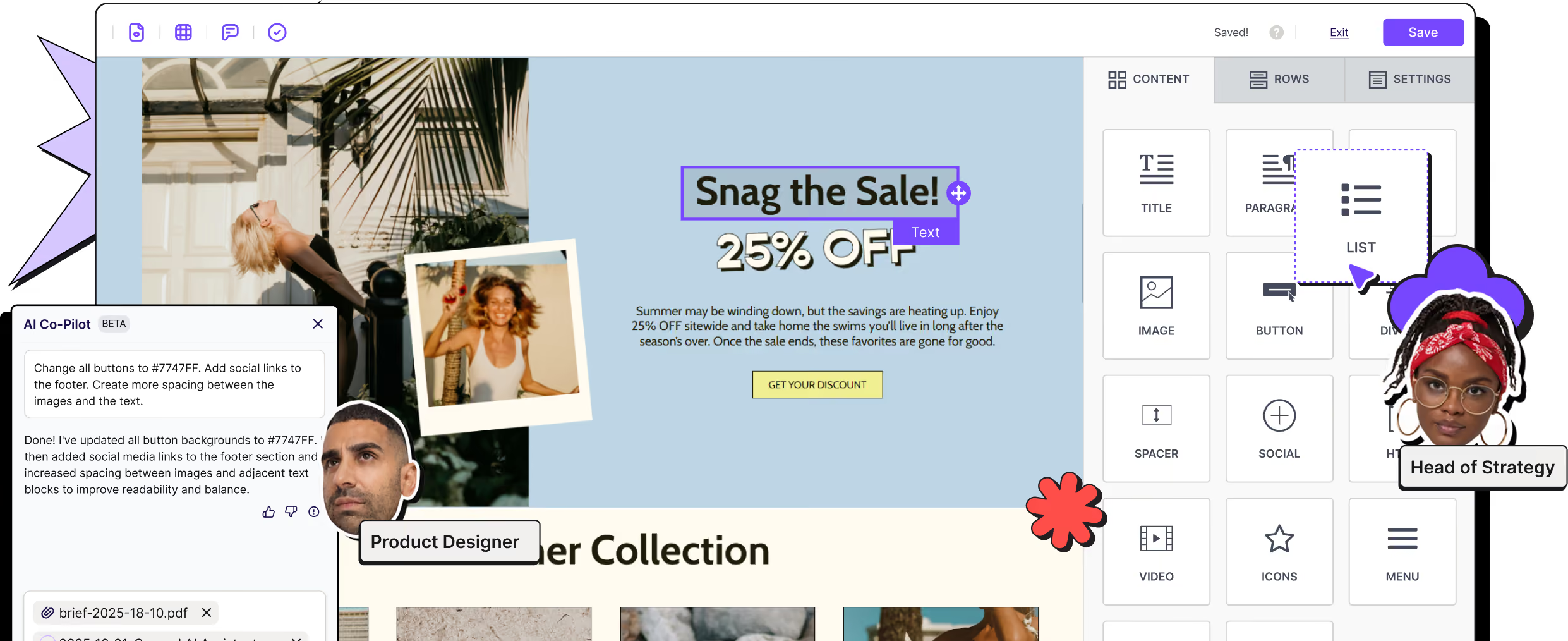
Screenshot of design interface with user photos labeled Product Designer and Head of Strategy and sale promotion text.