

Tutorial: How to Add Anchor Links in Emails
Add anchor links in emails with this step-by-step tutorial. Improve navigation and user experience!

Do you use HTML anchor links in your email campaigns? Anchor links in email are incredibly useful for newsletters that are long and content-rich. They give your subscribers a chance to quickly scroll down and directly skip to where they want to read. And when your emails are easier to navigate, your readers are more likely to stick around and take in the entire message.
Why use anchor links in emails?
An anchor link is a hyperlink in an email. When that hyperlink is clicked, it takes you to another part of the email instead of opening a separate window. Anchor links are most helpful for long messages, which is why they're generally used in email newsletters instead of sales emails. You might choose to include just a single anchor link, or add a full anchor menu in your email header that acts like a table of contents so readers can see at a glance what's included in the message.
Some newsletters add anchor links at the top so readers can use a table of contents to quickly navigate to each section. Plain text emails especially benefit from anchor links since they don't have colorful HTML subheadings to aid in navigation — a plain text email can be difficult to scan, and anchor links eliminate the problem.
How to create anchor links in an email
Adding an anchor link in your email campaign is easier than you might think. All you need is a basic know-how of the HTML link structure of your anchor links. An anchor link is made up of two parts: the URL link and the actual anchor tag that the link is "jumping" to in your email.
Email anchor links example
Anchor links work particularly well in newsletters focused on long-form content like essays and stories, where the header includes colorful anchor links to each corresponding story within the email. Each color can correspond with a different section, so tapping a name in the header takes the reader directly to that story section.
Getting started
Step 1: Build the email
Start with a basic one-column design for the header, then drag in a multi-column structure to arrange the top anchors, followed by the intro and first story content.
Step 2: Choose an anchor link name and its position
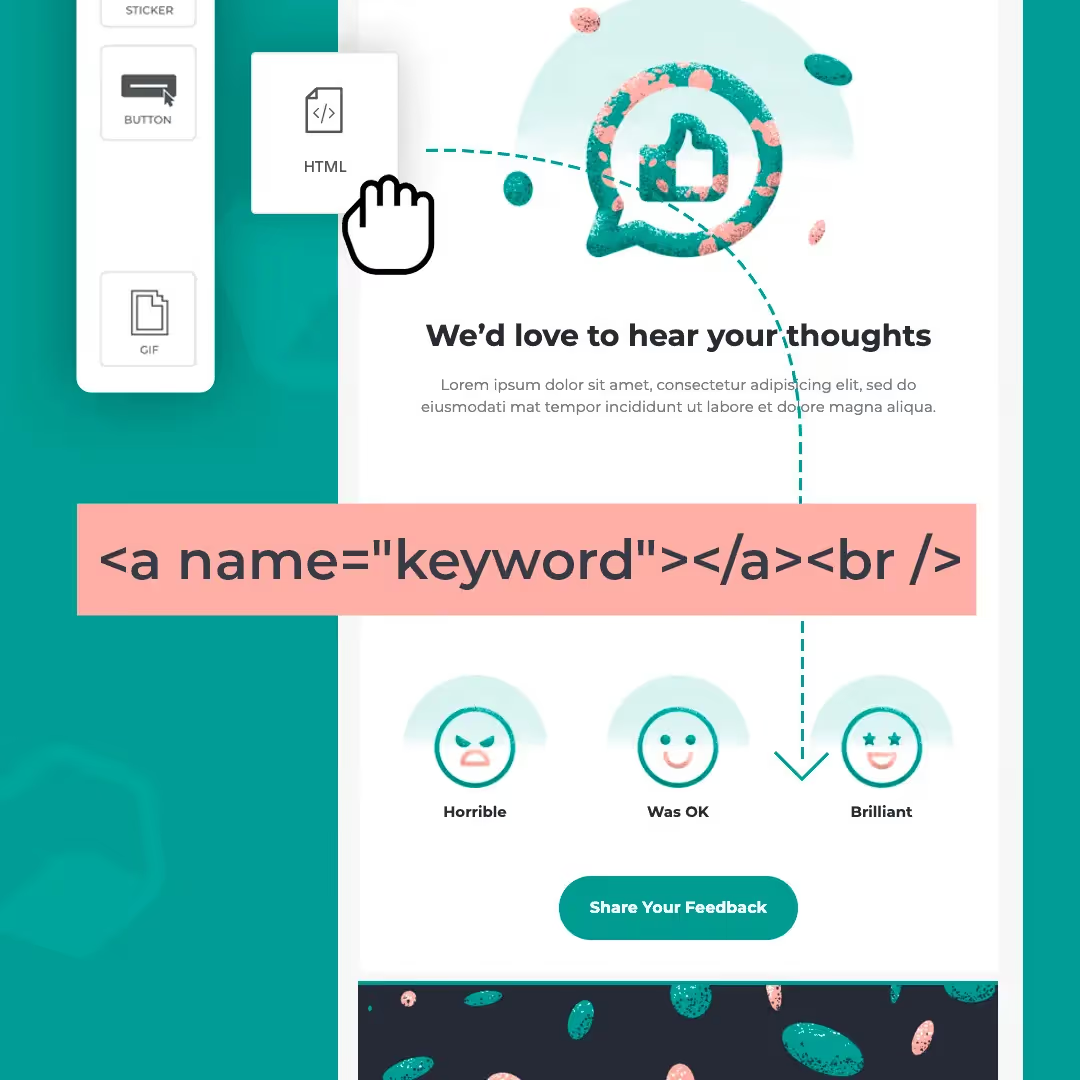
Use a custom HTML content block to add your anchor (think of it as a bookmark). Drag and drop the HTML block to where you want the link to "jump" down to, then paste in one line of HTML code in the content properties field:
<a name="grose"></a><br />
The name in quotes can be whatever you want — just keep it simple and easy to remember, ideally one word, as this is the keyword you'll use when linking to this anchor tag.
Step 3: Link the anchor
Now that the anchor's position has been specified, the text in the header needs to be linked to it. Select the text and choose the Insert Link option in the toolbar, then link to the anchor by entering a hashtag followed by the name (e.g. #grose) in the URL field. For the link to work, it's important to include the hashtag before the name and to make sure the name matches the one you chose earlier.
Step 4: Send a test email to test the anchor links
Once you receive the email, click on the anchor links and watch the magic happen. You can also add additional anchor links at the bottom of each section with text that says "Top of page" so readers can go back up to your anchor menu with a single click.
Creating anchor links in email with a menu feature
Many email editors offer a menu feature as a simpler way to add your links: open up an email template, drag a menu block onto the message, add your text and hyperlink it with internal links, then customize the layout and text of the menu to make it more visually appealing.
Email client support for anchor links
Anchor links are not supported by all email clients, so keep this in mind when deciding whether to add a table of contents to your newsletters. Generally supported: Gmail (Web), Gmail (Android app), Yahoo! Mail (Web), Outlook.com (Web), Outlook (desktop), Samsung email app (Android), and Windows Mail. Generally not supported: Gmail (iOS app), Apple Mail (iOS), Outlook (Android app), and Outlook for Mac.
Articles to wet your whistle

.jpg)

Subscribe to our newsletter.
Dive into the world of unmatched copywriting mastery, handpicked articles, and insider tips & tricks that elevate your writing game. Subscribe now for your weekly dose of inspiration and expertise.