

Why brand drift happens, and how to stop it
Why brand drift happens when many teams send email, how to spot where it starts, and how to keep everyone on-brand, including if you send from Salesforce.


Picture six teams sending emails for the same company. The events team copies last year’s invite, old logo and all. A regional team nudges one button toward orange because it “really pops.” Someone in product marketing can’t find the brand font and settles for its distant cousin, and the footer gets updated in one template while twenty others carry on as if nothing happened.
Nobody is trying to go off-brand, and these teams may even work from templates with locked down styles. Put their emails side by side, though, and they look like they came from six different companies. That’s brand drift, the slow pile-up of small, mostly accidental changes that erode email brand consistency. If you’re responsible for keeping things consistent, you probably spend more time than you’d like checking and fixing other people’s emails before they go out.
Most drift doesn’t come from bad intentions. It comes from how teams actually work: copying last month’s email, making quick fixes, and being unsure who can change what. Locking down template styles helps, but it can’t fix those habits on its own. That’s why guardrails hold best when the approved version is also the easiest place to start.
Why email brand consistency matters
Off-brand content is more common than most teams would like to admit. In the 2021 Content Effectiveness Report by Lucidpress, a company that makes brand templating software, 77% of the 452 professionals surveyed said they see off-brand content created at their own company. Approved variations, like a separate accent color for each department, are part of a healthy brand system. Drift starts when those differences are no longer intentional.
In regulated industries, the stakes go up. When we looked at how our customers on Salesforce Marketing Cloud and Account Engagement talk about brand controls, most teams in higher education, credit unions, aviation, and financial services framed them as a matter of governance and compliance, where an outdated disclaimer is more than a design slip. And whoever has to catch all of this ends up as the unofficial brand police, reviewing other people’s emails instead of working on the next campaign.
Why brand drift happens
Locking down styles and templates so that they can’t be changed is a sensible first step, but in the customer interviews we ran, some teams using our own builder still saw drift with brand styles in place, because people imported or duplicated emails that sidestepped them. Four habits came up again and again in those conversations.
People copy the wrong email. Duplicating isn’t a problem in itself. Docupace’s head of communications runs email for three brands by duplicating approved, on-brand designs, and it works well. Trouble starts when the email your team copies is last spring’s campaign, complete with its old logo and expired links, and many of the people we interviewed said they duplicate old emails rather than start from official templates.
Quick fixes stick around. A button color or link style gets changed “just for this campaign” and quietly stays that way. One university marketing team told us these colors sometimes get changed by accident, so they still review every email before it goes out.
The wrong person can edit. Permissions tend to grow over time and rarely get reviewed. At one fintech company, someone who had been given edit access by mistake changed a shared footer, and the change appeared in every email that used it.
Updates rely on manual changes. A professional education provider described copying and updating logos, URLs, copyright lines, and footers in more than 20 templates each time they added a brand, and a single missed template is enough to give drift a new starting point.
Locks can also backfire when they block something people legitimately need to change. Customers told us that unclear roles lead to frustrated questions like “Why can’t I edit this?”, and some teams end up promoting and demoting users just to get the work done, which creates new gaps for drift.
Drift isn’t tied to one platform, and it shows up in Salesforce and in external email builders, ours included. In RGE Studio, workspace styles don’t overwrite the settings already saved in an existing template, so a template from our catalog or an older custom template may not reflect your current styles.
Find where your drift starts
Before you change any settings, run a quick brand drift audit to find out which of these habits shows up most on your team. Pull 5 recent emails from different teams, lay them side by side, and note three things for each one.
- What’s off-brand. Compare it with the version of your brand guidelines that applied when it was sent, including any approved variations for that brand or department, and check the logo, the button and link colors, fonts, spacing, and the footer, including legal text.
- Where it started. Was it built from an approved template, copied from an older email, or made from scratch?
- Who built it. Note the team and whether that person was meant to have edit access to brand elements.
Then look for the pattern, keeping in mind that a symptom isn’t yet a cause. If most off-brand emails began as copies, look at what people duplicate. If they came from the right template but still drifted, check quick fixes and permissions. If the same outdated footer keeps appearing, check whether teams are copying an old source or whether an update never reached every template. Either way, focus on where your process allows inconsistencies to slip through, rather than on who made each mistake.
Once you’ve made changes, repeat the audit after your next few campaigns, adding a few more emails each time, to see whether fewer need brand corrections.
Make the approved version the easiest place to start
Start with the habit you uncovered, and fix it with the controls your current tools support.
Make approved starting points easy to spot. Keep approved templates where every team looks first, and label them so nobody has to guess which one is current, with a revision date and the person who owns it. Archive the old campaigns that people tend to copy. It also pays to show people what’s already there, since several of our own customers told us they had never come across features such as style settings or the template library in their accounts.
Protect what defines the brand, and leave campaign content open. Lock the elements that define your brand and the text that must stay exact, such as legal lines and required footer details, and leave campaign copy, approved images, and relevant links editable. A regional team can then adapt a campaign quickly without touching what defines the brand or hunting for a workaround.
Limit who can edit brand elements, and make exceptions easy to request. Keep the list of people who can change brand elements short, and review it a couple of times a year. Then decide who approves exceptions, like an extra accent color for a single school or business unit. What matters is that requests have a clear place to go rather than becoming quiet workarounds.
Give shared elements an owner, and check how changes travel. Footers, legal lines, and logos change more often than people expect, after a rebrand, a new office address, or an acquisition. Give each one a clear owner, and find out how an update reaches the designs that already use it, since some shared components update everywhere automatically, while others leave existing emails as they were. Because a mistake in a shared element spreads further than a local one, review changes in a few representative emails before rolling them out.
Where to put the guardrails: Salesforce or an email design tool
For teams on Salesforce Marketing Cloud or Account Engagement, these controls can live in Salesforce, in a separate email design tool, or in both. An email design tool is where teams create emails before exporting them to Salesforce. The choice depends on how your team builds and edits its emails.
Option 1: lock templates inside Salesforce
How it works. In Marketing Cloud, anyone who builds a template in Content Builder can lock specific areas, such as the logo or footer, so other users can’t edit them. In accounts with several business units, shared content can be granted the View and Send permission so the original can’t be changed. In Account Engagement’s classic email builder, templates are editable by default, and locking isn’t a setting you switch on in the editor. It has to be coded into the template’s HTML, and once you define editable regions, everything outside them is locked.
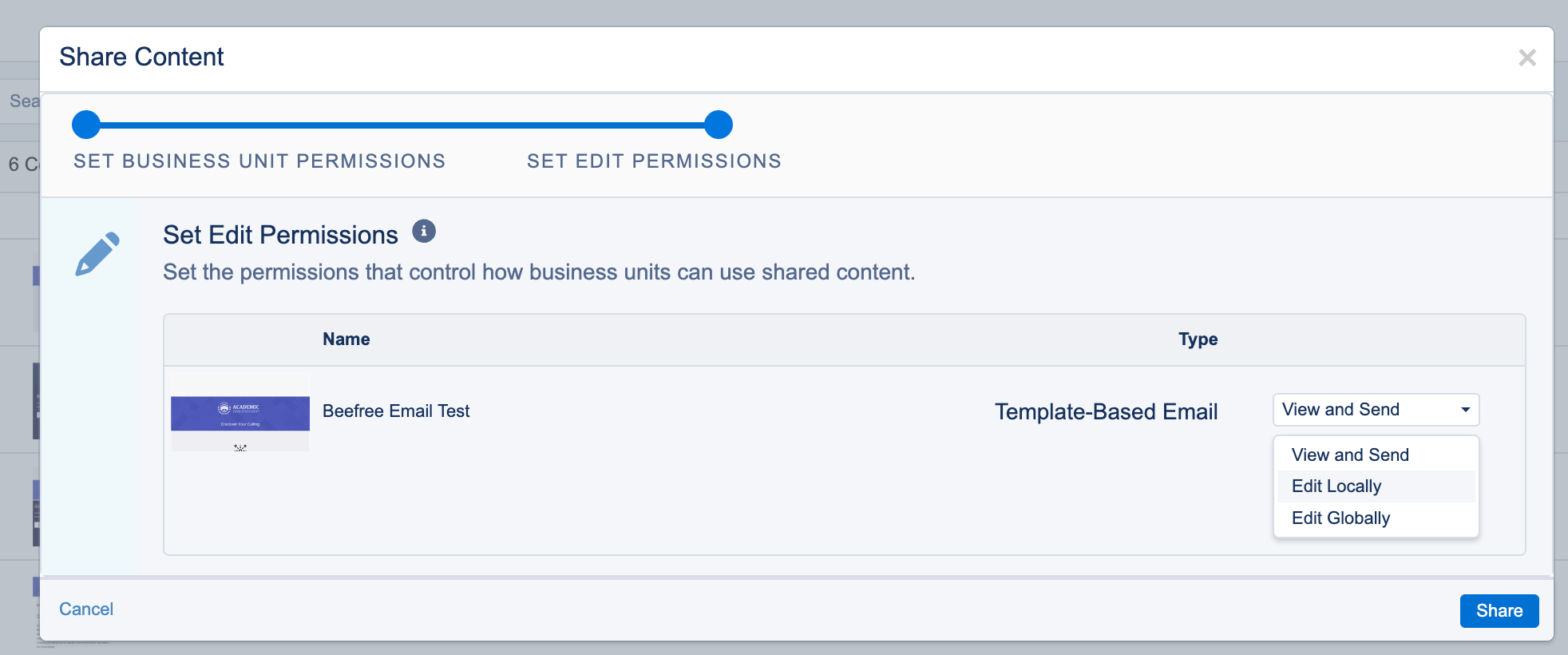
When it holds. This works best when templates are stable, a designated person or small team owns and maintains them, and senders mostly change text. That person doesn’t have to be a Salesforce admin, says Tana Babcock Walsh, Demo & Email Strategist and a Salesforce consultant who works with our team as an external contractor, but someone has to be responsible for keeping the setup in place. Ideally, she explains, primary templates are created at the parent level and shared with child business units, and restricted folder access keeps marketers from opening the original or starting from an outdated version.
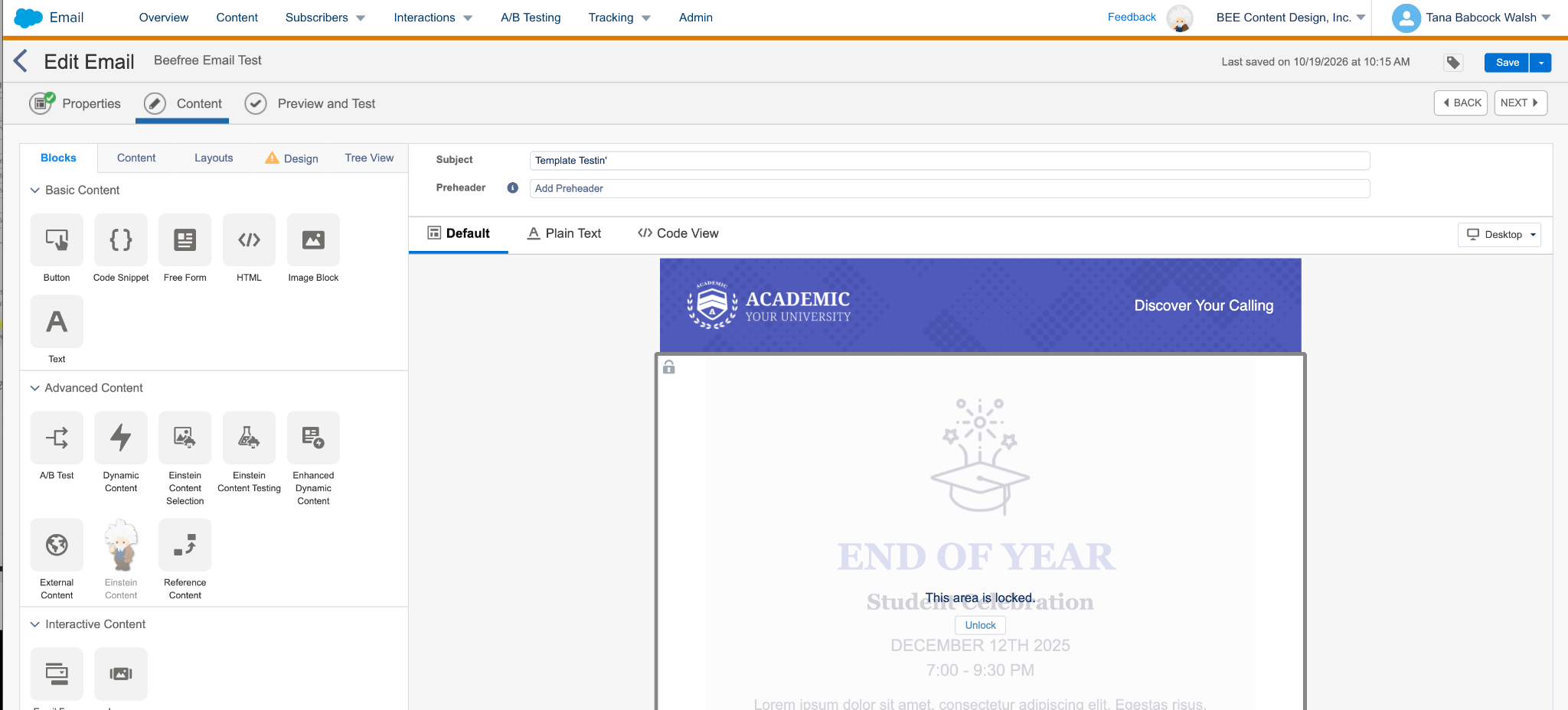
Where it leaks. Roles and permissions are where loopholes tend to open up, Tana notes, especially in smaller teams where people wear many hats and often have broad access. As the screenshot below shows, a user with admin access can still unlock a locked area while editing an email, so it’s worth checking who on your team has that level of access, and View and Send protects only the shared original, since people can still edit shared content inside an individual email. Users who can create or edit emails can also often start from scratch, including by pasting or writing HTML, unless those features are restricted, and when local editing is allowed for a shared email, it creates a separate copy that no longer follows the original. When everything lives in one business unit, people may also fall back on copying their last email, a habit that came up again and again in our customer interviews.
In Account Engagement, editable regions require HTML skills, and those editing restrictions don’t apply to emails created with the Send Account Engagement Email button. In smaller operations, the designer, the email developer, and QA may all be the same person, which can make those controls harder to maintain.
Option 2: set guardrails in an email design tool
How it works. Here, the guardrails sit in the builder your teams design in, before anything reaches Marketing Cloud or Account Engagement. Look for a tool where only certain roles can change brand styles, rows and blocks can be locked, and every team sees the same shared library first.
In RGE Studio, Owners, Admins, and Managers can change workspace styles, and our Academy has a short tutorial on setting them up. On paid plans, Managers and above can lock rows or individual blocks while leaving selected content editable, and Business and Enterprise plans also let you restrict color choices to the brand palette.
Updating a synced row updates every RGE Studio design that uses it, and on the Enterprise plan, Brand Kits share styles and saved rows across connected workspaces.
When it holds. This tends to suit teams whose emails change often, where many non-technical people build them, or where several brands or departments share one email program. One university designs its approved templates and rows in a central workspace and shares them with each department’s workspace, so departments work on their own under one brand.
Where it leaks. It’s another tool to pay for and roll out, and people will still copy old emails if the approved templates aren’t easy to find. The builder’s guardrails also stop at the export step. As Tana points out, an email exported to Marketing Cloud or Account Engagement can’t use those platforms’ template features, such as editable regions, unless someone is comfortable editing the HTML directly, so you’ll still want some controls inside Salesforce for anything edited there. Our guide to moving email templates into or out of Salesforce covers how teams keep the two in step.
Which fits your team
Either option only holds if the habits above are in place, so use this table as a starting point based on how your emails are actually made.
One brand, even with six teams
Those six teams will still have deadlines, last-minute requests, and the occasional strong opinion about orange. Their emails won’t all look identical, and they don’t need to. What changes is that each of them starts from an approved version that’s now easier to access than last spring’s campaign.
If you’re not sure where to begin, run a brand drift audit this week to see which habit to fix first and where to set your guardrails. And if you’re weighing a design tool alongside Salesforce, our workflow guide for RGE Studio with Salesforce walks through how that setup can work in practice.
Articles to wet your whistle

Subscribe to our newsletter.
Dive into the world of unmatched copywriting mastery, handpicked articles, and insider tips & tricks that elevate your writing game. Subscribe now for your weekly dose of inspiration and expertise.